
Diagnostics Page
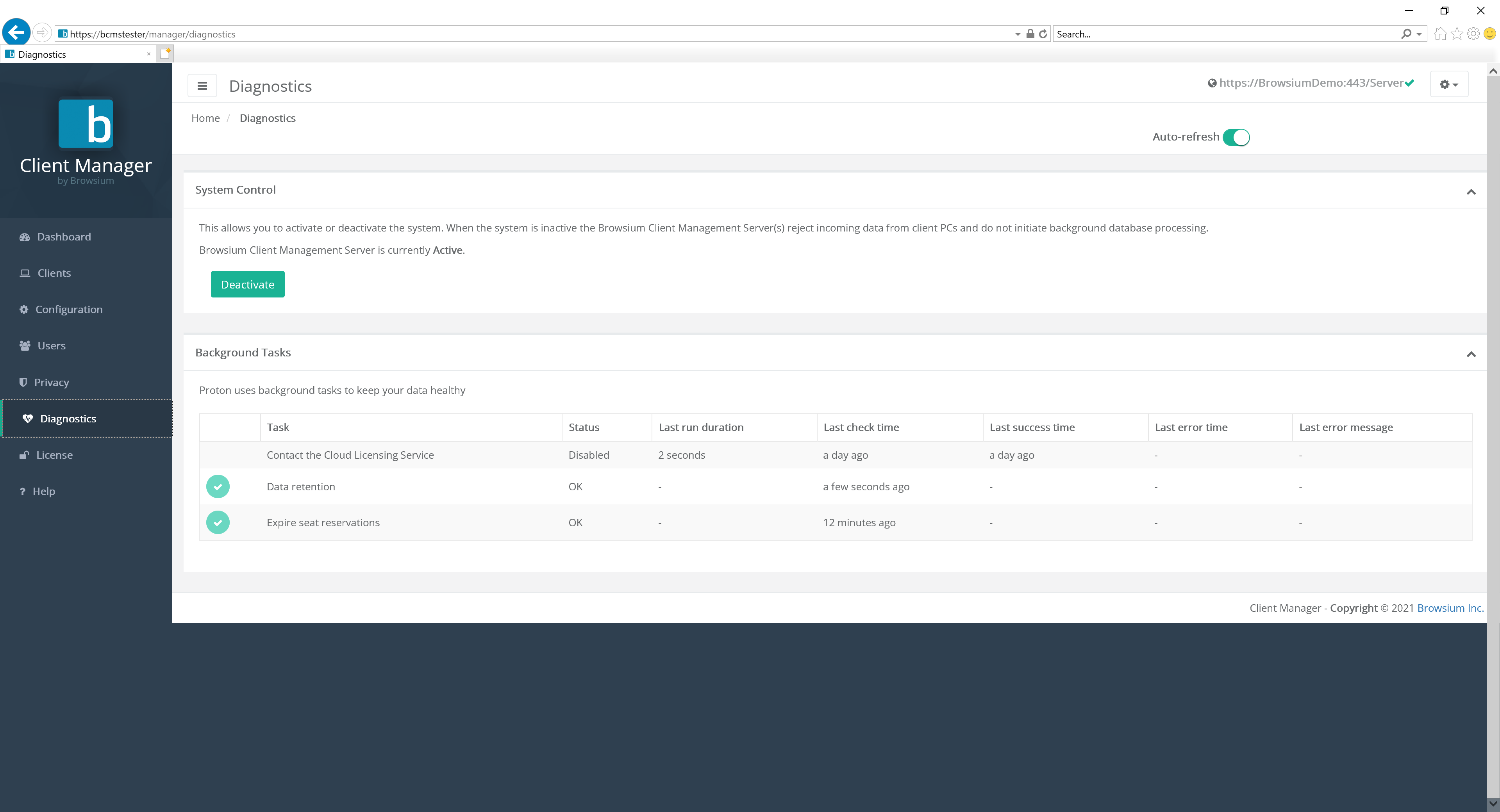
The Diagnostics page includes System Controls to enable or disable the BCMS server and provides administrators with information on the Background Tasks and internal health of the BCMS system and processes. This data is useful for administrators to review for troubleshooting and may be required when contacting Browsium support.
Value Description
Contact the Cloud Licensing Service The BCMS server routinely connects to the Browsium Cloud Licensing Service to validate the licenses assigned to your organization. No company or system configuration information is transmitted. This connection is done to ensure licenses remain valid and seat counts are properly implemented.
Data retention The data retention process is set by default to run at midnight each night. This item shows the status of the data retention enforcement and cleanup process.
Expire seat reservations Client machines that do not report or connect to the BCMS server on a regular basis will have their license seat reservations expired. This is done to ensure retired systems are removed from license seat counts, as well as ensure accurate accounting is maintained on a regular basis.
Section titled “Expire seat reservations Client machines that do not report or connect to the BCMS server on a regular basis will have their license seat reservations expired. This is done to ensure retired systems are removed from license seat counts, as well as ensure accurate accounting is maintained on a regular basis.”When an error condition occurs, the task switches to status Error. The task will remain in status Error until the task runs again without triggering an error. However, the Last Error Message will remain indefinitely so BCMS administrators can see the most recent error, even if status returns to OK**.** The Last Error Message can be cleared from the Diagnostics display via the green “Clear last error” button. However, all errors are written to the Browsium log in Event Viewer so you can retain a copy for future troubleshooting.

When a task has an active error, you’ll also see the status on the BCMS Dashboard in the System Status section.
