
Project Settings Node
The Project Settings Node gives you the ability to edit global settings for Catalyst configurations. These settings encompass features such as the Splash Screen behavior, Default Browser behavior and choice, and the location of custom redirection messages.
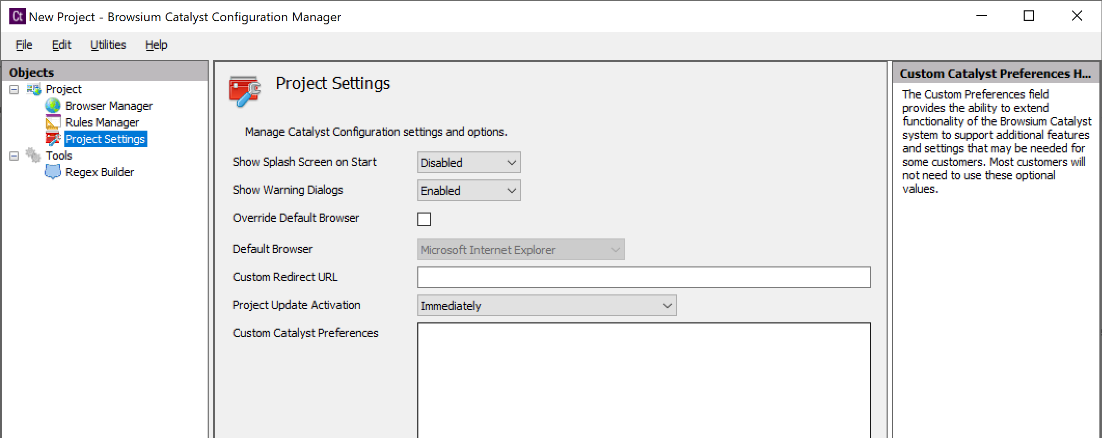
Show Splash Screen on Start — By default, Catalyst disables showing the splash screen (Catalyst graphic with the product name and version number) on client systems when the Controller is started. This option can be enabled during project configuration. The splash screen is only displayed at startup (usually set to user login) so users should not regularly see this display.
Show Warning Dialogs - This sets whether or not Catalyst displays certain warning dialogs when a test configuration is started. This setting only displays a dialog on starting a test configuration when using the manager — deployed clients will never show warning dialogs regardless of the value for this setting.
Override Default — Defines whether Catalyst should override the default browser setting on the system, making Catalyst the default handler of HTTP and HTTPS traffic. It is checked by default, and must be checked for Catalyst to seamlessly handle navigation from desktop shortcuts and links in emails. However, if it is unchecked, Catalyst rules will still be honored as long as the Browsium Client extension is running in the default browser.
Default Browser — Allows an administrator to define the default browser (as defined by Catalyst) to be used for desktop shortcuts and links in emails when no rule exists. This setting also defines the default Target Browser for new rules.
Custom Redirect URL — Enables administrators to specify the URL for a custom page displayed when a rule includes Starting Action = Redirect.
Project Update Activation — Project Update Activation enables new Catalyst configurations to be loaded on the fly without restarting Browsium Controller (which typically requires a reboot or logoff/logon of the client computer). The field can be set to load the new configuration immediately (the default), at a scheduled time, or upon next Browsium Controller restart.
Custom Catalyst Preferences — Provides the ability to extend Catalyst functionality to support additional features and settings that may be needed for certain environments. Most customers will not need to use these optional values.
Custom Catalyst Preference Description
Catalyst.IEAddonDetectRedirects = true When this flag is set to “true”, Internet Explorer will detect 30x redirection (typically a 302 redirect) and evaluates rules on the redirected URL. By default, 30x redirected URLs are ignored.