Browser Manager Node
The Browser Manager contains the list of defined browsers for a given system. Catalyst supports six preset browser definitions — Google Chrome, Microsoft Edge (Legacy, Chromium, and Edge IE Mode), Microsoft Internet Explorer, and Mozilla Firefox— by default. Catalyst Configuration Manager will attempt to automatically determine the installation path for each installed browser. If a required browser is not present or not installed on the machine where the Browsium Client is running and a rule requires the given browser, that rule is skipped and may result in a misconfiguration or unexpected behavior.
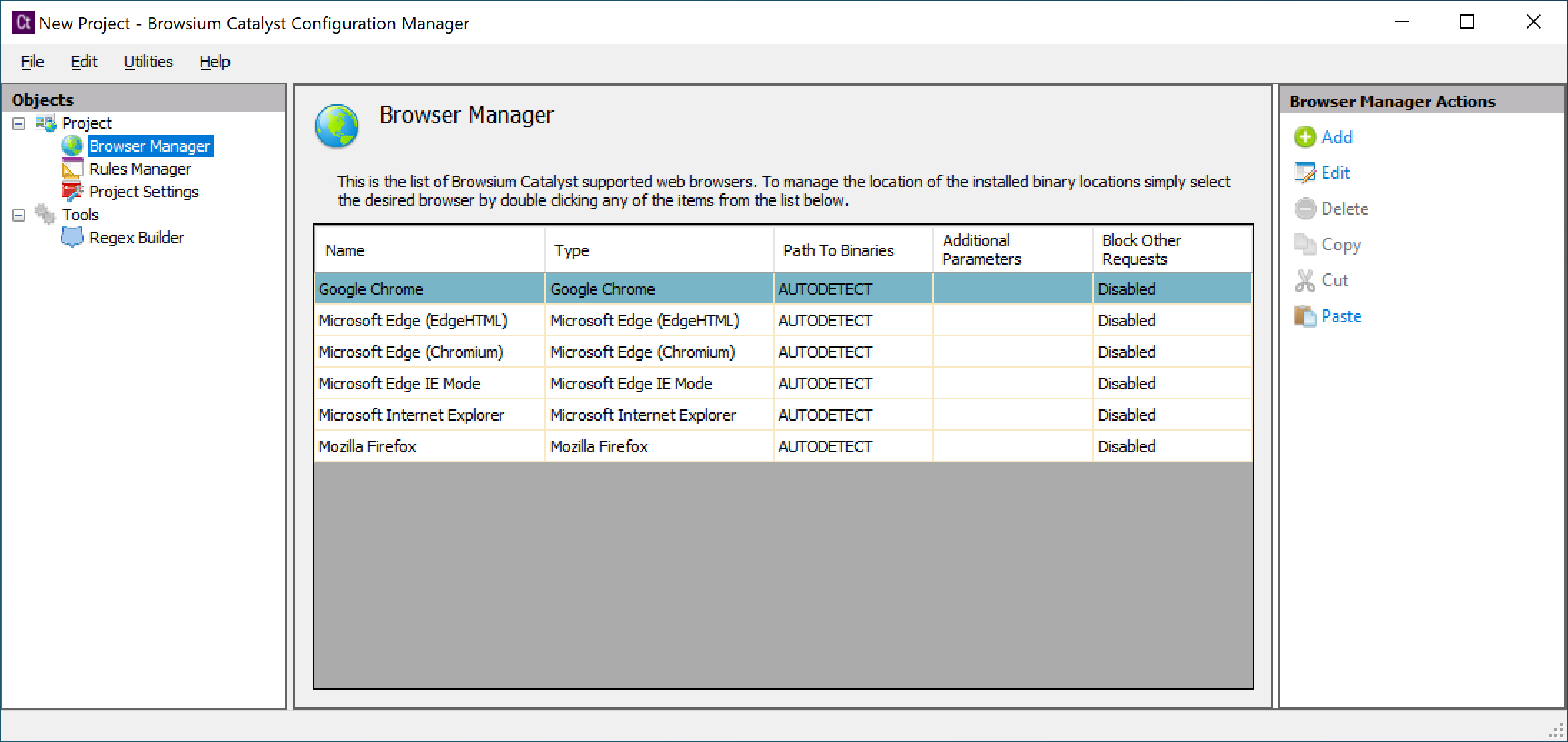
Selecting a browser and then selecting Edit from the Browser Manager Actions pane will bring up the Browser Editor. For the preset browsers (Chrome, Microsoft Edge, Internet Explorer, and Firefox), you will see four read-only fields and one field (Block Other Requests) which can be toggled between Disabled and Enabled. Custom browsers allow editing of all fields.
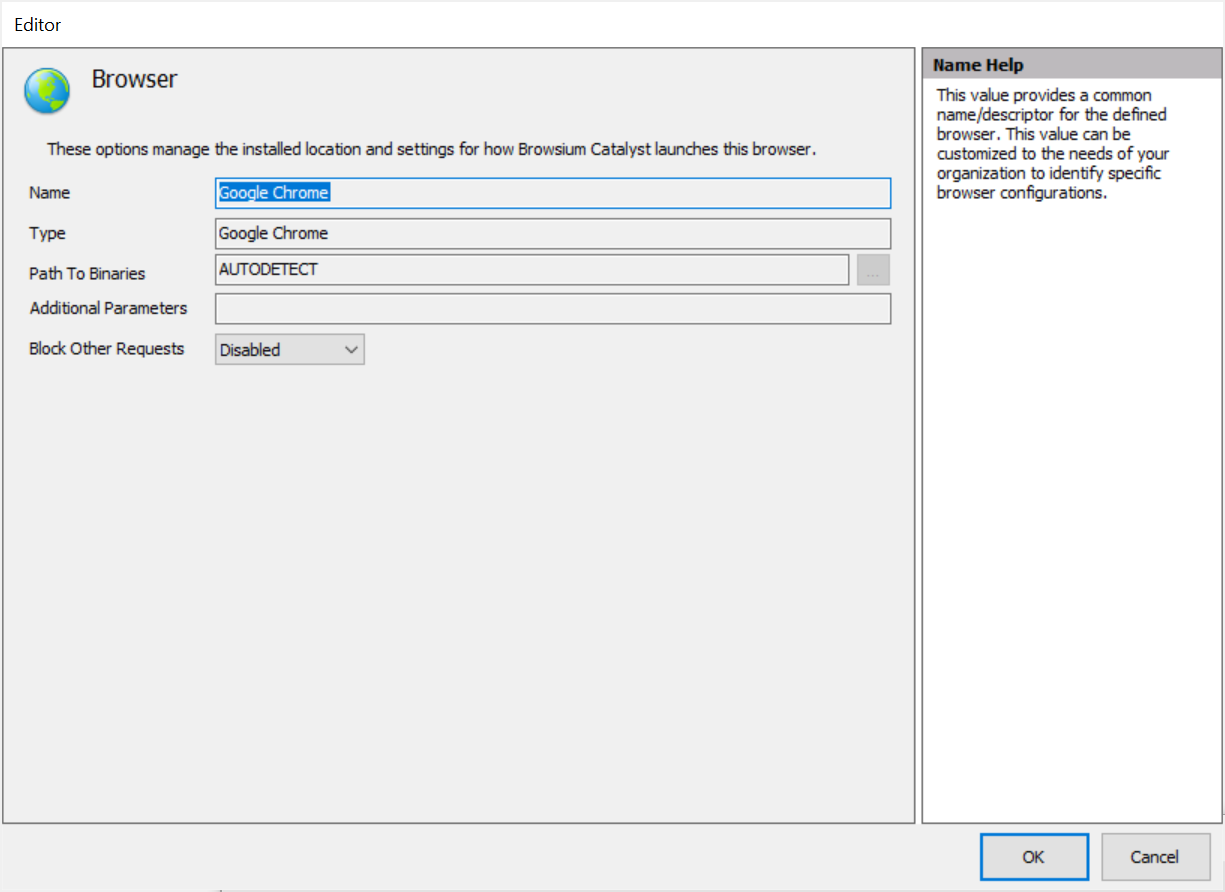
Browser Name — This is the name of the browser. Browser names are ready-only for the preset browsers, but can be modified to reflect naming relevant to your organization for custom browsers.
Browser Type — The Browser Type value is used by Catalyst to identify which type of browser is defined by the setup. This value is required to support multiple browser instances and variations. Setting the Browser Type incorrectly may cause unexpected behaviors.
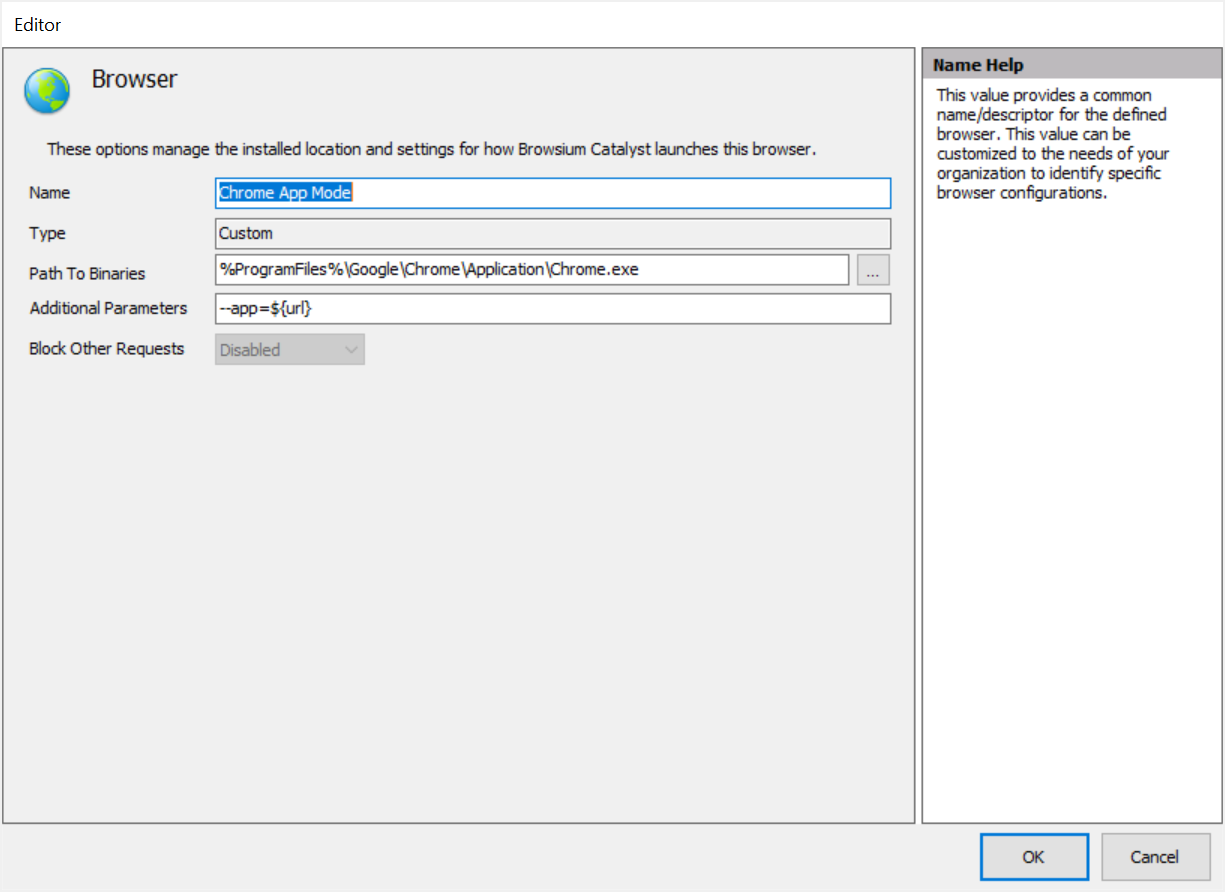
Path to Binaries — This is the path location containing the application binaries. Catalyst needs to have the accurate location of the binaries to properly load the defined browser when rule conditions are met. Errors in the path location will cause Catalyst to fail to properly load a browser or web content. Paths to preset browsers are always automatically detected. Use of the system variable %ProgramFiles% will ensure that the path to a custom browser works properly on both 32-bit and 64-bit Windows systems. See the example in section 3.3.1.
The Path to Binaries field must not contain quotes, even if the path includes spaces. Catalyst will properly handle the spaces to locate to browser executable.
Additional Parameters — In addition to launching a desired browser, Catalyst can open the browser using additional parameters specified here. Ensure any additional parameters are correct for the specific browser as incorrect items may cause the browser to stop loading.
Additional Parameters are often used when creating a custom browser for Google Chrome to launch Chrome in Application Mode (with no address bar or menus). Use the syntax —app=${url} to launch Chrome in Application Mode.
Block Other Requests — By default, Catalyst is designed to only intervene in content loading and redirection when explicitly defined by a rule. Setting this option will prevent the user from loading any content in the specified browser unless the content matches a rule.
Use caution when setting Block Other Requests to Enable, as users may become confused when the browser redirects any address entered that does match rules targeted for that browser.
[]{#_Add_a_Custom .anchor}
Add a Custom Browser
Section titled “Add a Custom Browser”Selecting Add from the Browser Manager Actions pane enables the addition of a custom browser. Custom browsers are typically Target Browsers only, meaning that they can be the destination browser for a rule, but cannot process rules themselves because they don’t have a Catalyst browser extension. Examples include Opera and Safari, which would be set as Type = Custom.
However, a custom browser can be created of type Google Chrome and be capable of processing rules. This is typically done to launch Chrome with special parameters, such as Application Mode or Kiosk Mode.
The following example configures a custom browser named Chrome App Mode, launching Chrome in Application Mode. Although the Type is still Custom, Catalyst recognizes Google Chrome as the binary and allows rules to be processed.