
Catalyst Configuration Manager Overview
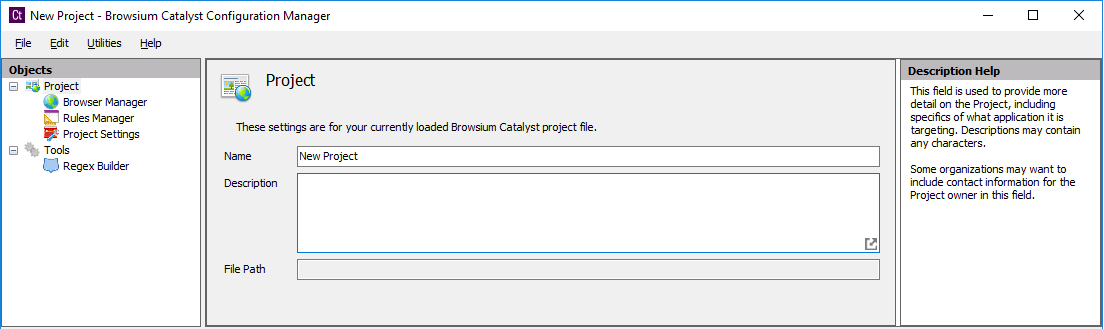
Catalyst Configuration Manager enables you to create and manage rules that define the websites you want to open using a browser designated by Catalyst. This section looks at the various elements of Catalyst Configuration Manager. Configuration Manager is designed with the look and feel of an MMC snap-in, with three main functional areas:
Objects Pane (Left) — Tree view enabling access to the Browser Manager, Rules Manager, and Project Settings for a given project
Content Pane (Center) — Main data and content window
Actions Pane (Right) — Contextual links and descriptions for common tasks and steps
Some data entry fields will display an  icon in the lower right hand corner of the text entry field. Clicking this link on any screen will open the extended and powerful text editor. The text editor is provided for easily working with complex text fields, as well as offering syntactical highlighting for easy and readable visual layout. When done editing using the text editor, simply click the OK or Cancel buttons to save (or discard) changes made.
The Actions Pane contains regularly used and context related common functions. The Add, Edit, Delete, Copy, Cut, Paste items appear in the Actions Pane based on the specific task being completed. The behavior of these items is the same in all scenarios. Some interfaces may not support items such as Copy and Paste, and will not be displayed.
See the Project Node, Browser Manager Node, Rules Manager Node, and Project Settings Node sections for a detailed description of each Objects Pane Node.